Blacklist System
Estimated reading time: 3 minutesOnly applicable to PMF v1.8.3 and above.
Introduction
PMF software provides you with a powerful content filtering system that helps you block unwanted content. It mainly includes two filtering methods: tag filtering and user filtering.
- Tag Filtering: Specifically designed for illustration and novel search pages, it automatically hides or filters out works containing specific tags.
- User Filtering: Completely blocks all illustrations and novels published by specified users, preventing them from appearing in your view.
How to Filter?
You can add unwanted content to the blacklist in two simple ways:
2.1 Filter Users
If you decide to block all works from a certain user, you can find and click a button or link named:
Add this user to the block list
on any page that displays the user's information (for example: illustration details page, novel details page, or user profile page). After clicking, the system will prompt you to confirm whether to add this user to the blacklist.
2.2 Filter Tags
When you want to block a specific tag, you can do so on any of the following pages: illustration details page, novel details page, or tag search results page.
You need to operate on the work's TAG entry (i.e., the tag itself):
- Desktop: Right-click the tag with your mouse.
- Mobile: Long-press the tag.
After performing the above action, a block confirmation dialog will appear on the screen, allowing you to confirm whether to add the tag to the filter list.
Effects of Filtering
After setting up blacklist filtering, the following changes will occur when you browse content using PMF software:
3.1 Effects of Filtering Users
Once you add a certain user to the blacklist, when you try to click to enter this user's profile page (i.e., personal homepage), the software will refuse to load the page, and you will not be able to view any information or work list of this user.
3.2 Effects of Filtering Tags
If you filter specific tags, these tags will no longer appear in:
- Popular tags list.
- When you type in the search box to search, if your search content contains blocked tags, the software will refuse to execute this search.
This is for the sake of server resources and access security.
Allowing users to freely view pages with large amounts of blocked content (for example, a large search results page with blocked tags) will inevitably cause PMF software to send a large number of filtering and requests to the server.
Such a large number of requests in a short period of time may trigger the pixiv official server's risk control mechanism, which may result in your access being restricted.
Therefore, blocking these pages that may cause a large number of requests is a protective measure.
How to Unblock?
If you wish to remove previously added blacklist rules and have blocked content reappear, you can manage it through the following steps:
- Open the PMF software settings page
- Enter the tab named "Browse Settings"
- In the browse settings, find and click to open the "Blacklist Management" dialog (or button)
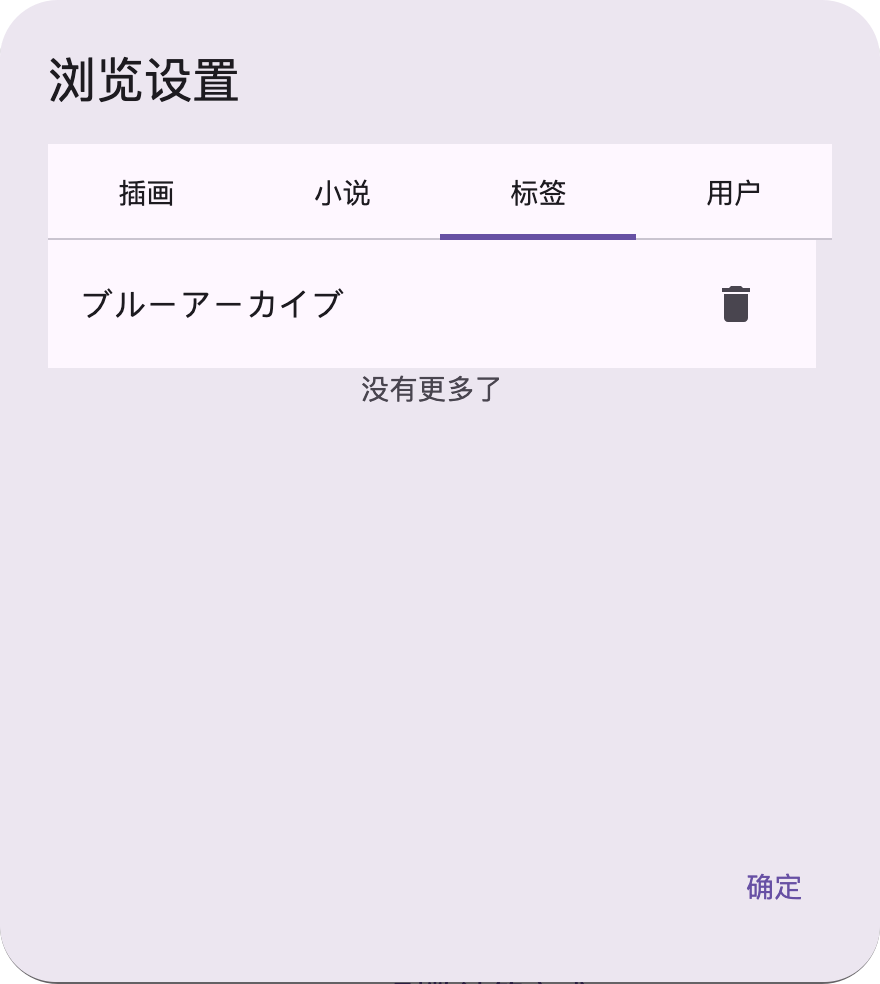
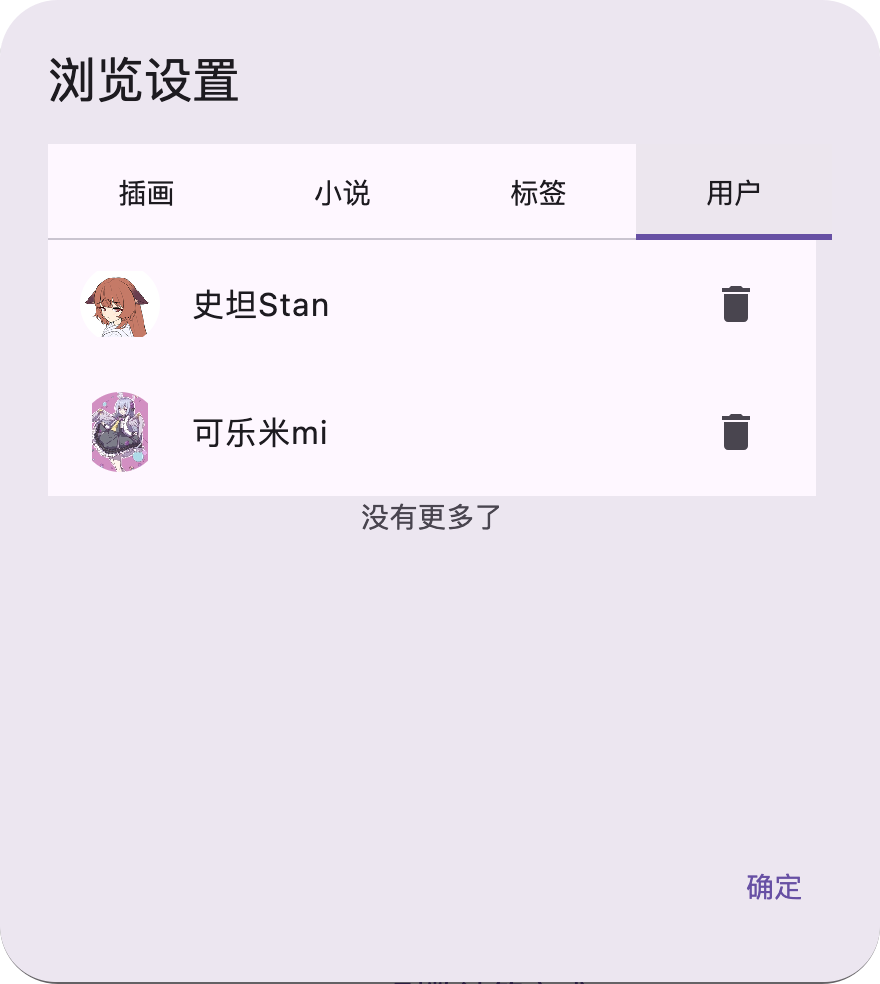
- In the popped-up management dialog, you can see the blacklist rules that have been set clearly divided into two corresponding main categories: Tag Blacklist and User Blacklist.
- Manage and Delete: In the corresponding category list, find the tag or username you wish to unblock, and perform the delete operation. Once the rule is removed, the corresponding content will reappear in your browsing results.